
Cloud PDF Sync for WordPress
Keep cloud-hosted PDFs automatically synchronised with your WordPress Media Library
Connect a public PDF from Google Drive, OneDrive or SharePoint and keep a stable copy automatically synchronised inside your WordPress Media Library. Use that local PDF anywhere in WordPress – in pages, download buttons, document libraries, PDF viewers or other plugins – without changing links when the cloud file is updated.
- Google Drive, OneDrive & SharePoint
- Stable WordPress Media Library URL
- Automatic hourly checks
- Manual Sync Now option
- Multiple PDFs supported

Keep one cloud file as the master. Let WordPress handle the rest.
Cloud PDF Sync keeps your cloud file as the source of truth, then creates and maintains a normal WordPress Media Library attachment with a stable URL.
Add your cloud link
Paste the public sharing link from Google Drive, OneDrive or SharePoint.
Sync to WordPress
The plugin downloads the PDF and creates a normal Media Library attachment.
Use the same local PDF everywhere
When the cloud file changes, Cloud PDF Sync updates the local Media Library copy without changing its filename or URL.
Everything you need to keep PDFs up to date
Stable Media Library URL
Keep using the same local WordPress PDF URL even when the source file changes.
Multiple cloud sources
Works with public Google Drive, OneDrive and SharePoint PDF links.
Automatic checks
WordPress checks configured PDFs hourly and updates the local copy when required.
Sync Now
Run an immediate manual synchronisation whenever an update needs to appear straight away.
Multiple PDFs
Create separate synchronisations for multiple publications, each with its own source, filename and Media Library attachment.
Use it anywhere in WordPress
Use the synchronised PDF in pages, Elementor, download buttons, document libraries, PDF viewers, DearFlip and other plugins that accept Media Library files.
Simple to manage inside WordPress
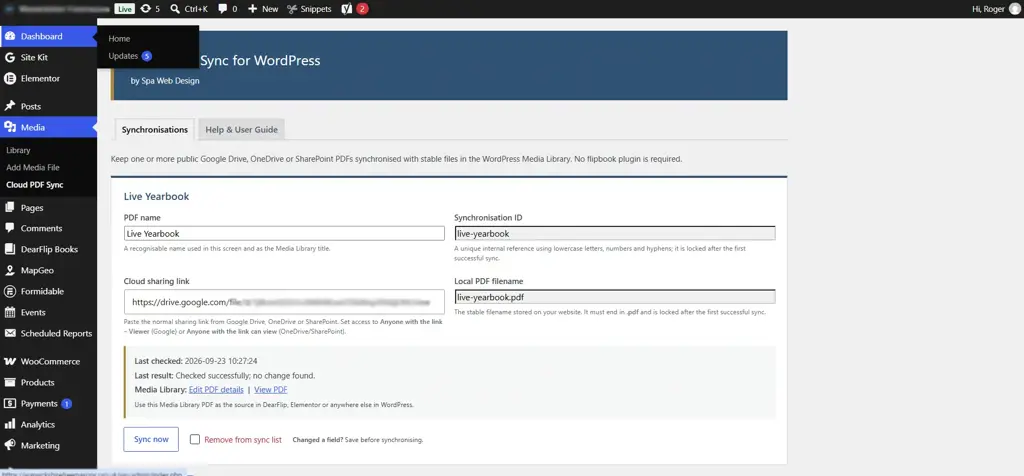
Manage synchronisations
Configure cloud PDF links, local filenames, sync status and manual updates from one WordPress screen.
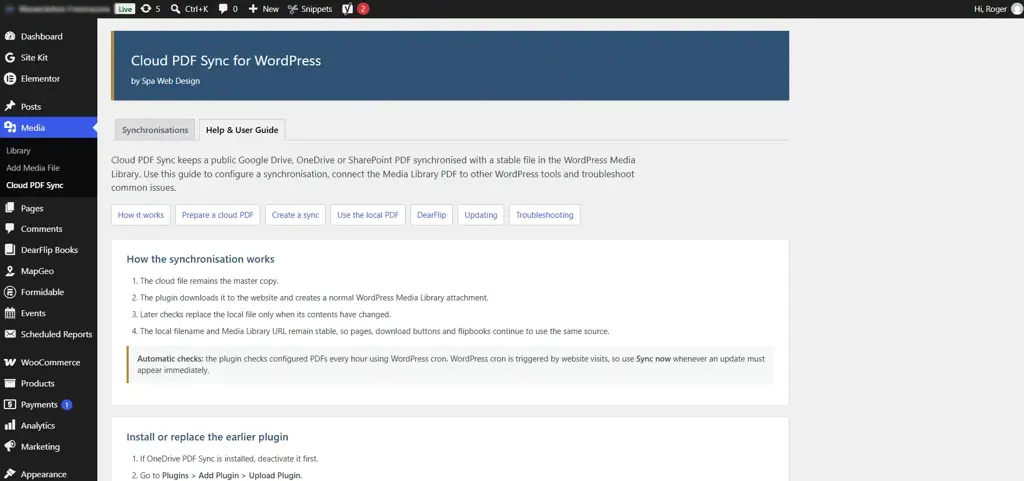
Built-in Help & User Guide
Follow step-by-step guidance for setup, supported cloud services, DearFlip integration, updates and troubleshooting.
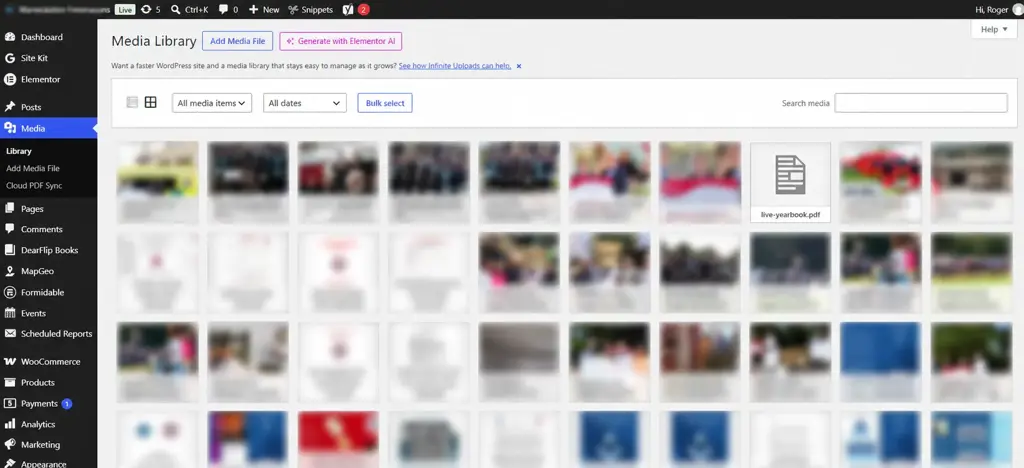
Media Library integration
Synchronised PDFs appear as normal WordPress Media Library files with stable local URLs that other plugins can use.
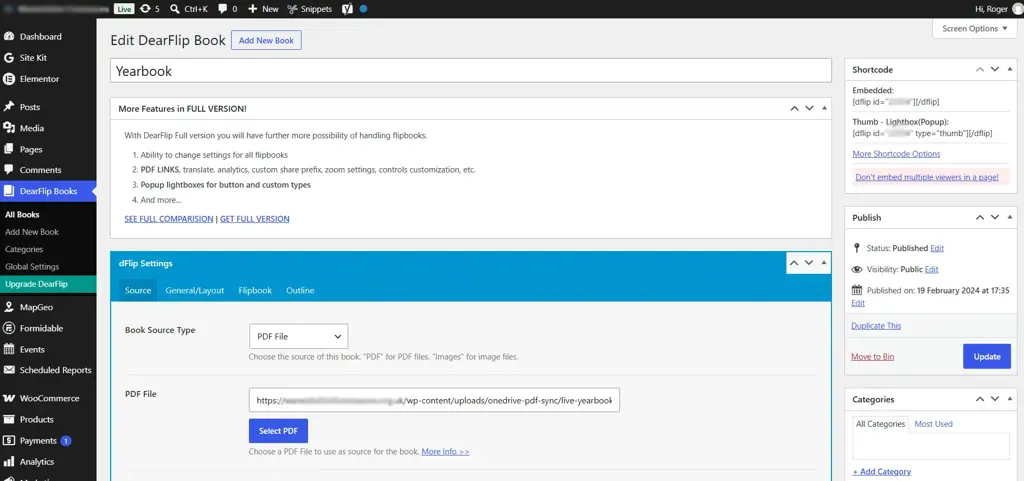
Works with WordPress plugins
Use with Elementor, PDF viewers, document libraries, download buttons and other compatible plugins.
Update the source PDF without rebuilding your WordPress pages
Once the synchronised PDF has been created in the Media Library, pages, download buttons, document libraries, PDF viewers and other plugins can continue using the same local file. When the cloud document changes, Cloud PDF Sync updates the website copy without changing the local filename or URL.
Without Cloud PDF Sync
- Replace PDFs manually
- Update page or button links
- Re-select files in plugins
- Risk visitors seeing an outdated copy
With Cloud PDF Sync
- Update the cloud file
- Sync automatically
- Keep the same WordPress URL
- Existing pages and plugins continue working
What you need to use the plugin
Requirements
- WordPress website
- Publicly accessible PDF sharing link
- Google Drive, OneDrive or SharePoint
- WordPress cron for automatic checks
Important to know
- Sign-in-required links are not supported
- The cloud file remains the master copy
- The plugin creates a normal Media Library attachment
- Removing a sync does not delete the Media Library PDF
- Sync Now is available for immediate updates
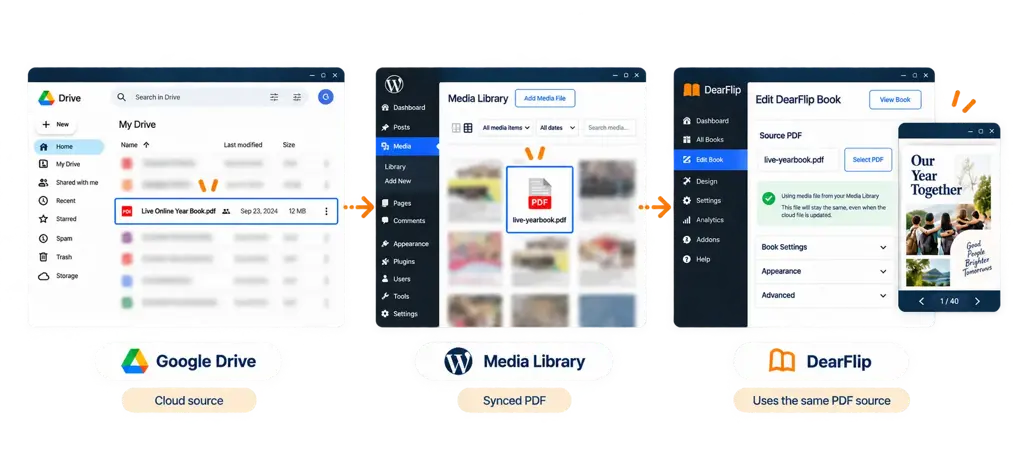
- The synchronised file is a normal WordPress Media Library attachment and is not tied to DearFlip or any specific plugin.
Use the same synchronised PDF across your website
Once Cloud PDF Sync has created the local Media Library file, you can use it wherever WordPress accepts a PDF, in download buttons, Elementor pages, document libraries, PDF viewers, membership resources and third-party plugins.
One example
A DearFlip book can use the synchronised Media Library PDF as its source, so the flipbook continues using the same local file when the cloud PDF is updated.
Built-in setup guidance
The plugin includes its own Help & User Guide covering setup, supported cloud providers, DearFlip, multiple PDFs, updating files and troubleshooting.
Cloud PDF Sync keeps your cloud-hosted PDF as the master copy. It downloads that file into WordPress and creates a normal Media Library attachment. Later checks replace the local file only when the cloud version has changed, while the local filename and Media Library URL remain the same.
Cloud PDF Sync currently supports public sharing links from Google Drive, OneDrive and SharePoint. The file must be accessible without signing in. If your organisation disables public sharing, sign-in-required links cannot be synchronised.
Yes. Once synchronised, the PDF appears as a normal WordPress Media Library attachment. You can use it in pages, Elementor, download buttons, PDF viewers, document libraries and other WordPress plugins that accept Media Library files
First check the Last result shown in Cloud PDF Sync. The Media Library attachment is only created after a valid PDF has been downloaded successfully. If the cloud service returns a web page instead of a PDF, make sure the sharing permission is set so that anyone with the link can view the file.
Yes. Run Sync now first and confirm the PDF has been created in the Media Library. You can then select that local Media Library PDF as the source for a DearFlip book. DearFlip continues using the same local WordPress PDF when the cloud source is updated.
Removing a synchronisation stops future checks, but it does not delete the PDF from the WordPress Media Library or remove it from pages or DearFlip books. Delete the Media Library item separately only when you are sure it is no longer being used.
Keep your WordPress PDFs up to date automatically
Connect a public cloud PDF, create a stable Media Library copy and keep it synchronised for use across your WordPress website.
Free WordPress plugin · Google Drive · OneDrive · SharePoint · Works with Media Library-compatible tools